 Second Read
What happens to your text.
None of this is a pitch. Just what it captures, what it asks your browser for, and where your passages end up.
I
Getting text in
- The crop overlay
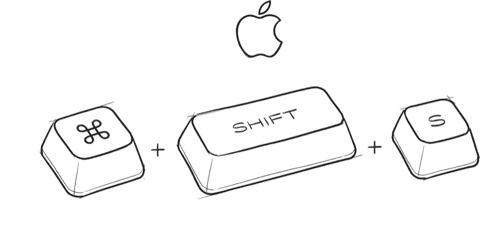
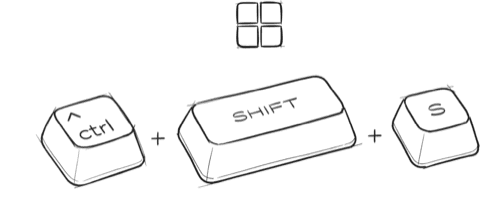
- ⌘⇧S on Mac, Ctrl+Shift+S on Windows. Drag a box, the text appears in a small editable panel, and it saves itself. The panel closes after eight seconds unless you click into it to fix something, in which case it waits for you.
- Select first, if the text is selectable
- Highlight a passage with your mouse and press the shortcut. It saves exactly the characters you selected, with no rectangle to overshoot and nothing from the column next door. This is the most precise way to capture, and the one to reach for on ordinary pages.
- Two routes when you drag a box
- Selectable text is read directly and takes about a millisecond. Everything else is read from the pixels and takes a second or two.
- The Telegram bot
- Send @secondreadtool_bot anything and it goes into your library. Plain text, a link, a tweet. Send a tweet and it keeps the text, the author, and the permalink, so the passage survives the tweet being deleted.
- Your Kindle highlights
- Connect Kindle once from Settings on secondread.cc and everything you have ever highlighted comes across, book by book. It keeps up with new ones by itself after that. Amazon has no export and no API for highlights — the only place they exist off the device is your notebook page — so the extension reads that page for you, with permission for that one address and nothing else.
- What nothing else can read
- Readwise and everything like it read the page's underlying code. That works for articles and Kindle exports and not at all for a slide, a Kindle Cloud Reader page, a screenshot inside a carousel, a scanned PDF, or a frame of a video. To those tools all of it is a blank page, so you take a screenshot instead, and a screenshot is a highlight with nowhere to go.
- It works offline
- Every capture is written to your device first, and the confirmation you see comes from there. Syncing happens afterwards in the background. Capture on a plane and it goes up when you land.

II
Getting it back out
- Every new tab
- One passage, its source underneath, nothing else. This is the main one and it is instant, because it reads from your device rather than the network.
- How the next passage is chosen
- Whatever you have gone longest without seeing wins, with a small boost for anything saved in the last week and a little randomness so it never feels mechanical. Anything shown recently is excluded, so you never get the same passage twice in a row.
- What that does to memory
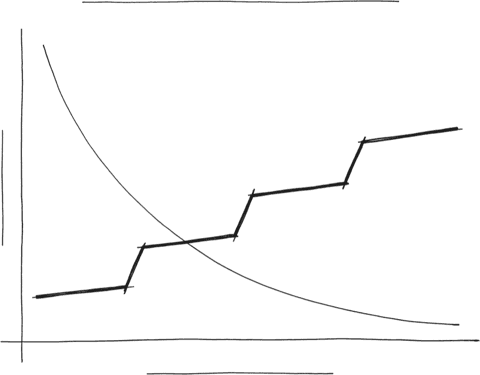
- You forget almost all of it within a week. Every new tab is a bump on that line, and each one falls away more slowly than the last. This is not a flashcard app and there is nothing to grade yourself on. You just keep bumping into the thing you thought was worth keeping.
- Digests
- Five passages by email or Telegram, on a schedule you set, in your timezone. Weekly by default because that is genuinely the right cadence.
- Your library on the web
- Search it, filter it, tag it, edit it, archive it.
- Export
- Markdown or JSON, any time, no request needed. If you ever want to leave, take everything with you.


III
The permissions it asks for

- No standing access to your browsing
- The extension gets access to one tab at the moment you press the shortcut, and loses it when you navigate away.
- No account required to try it
- Without signing in, everything stays on your device and nothing is stored anywhere else.
- What signing in stores
- The text you captured, the page address and title, whether it was read as text or from pixels, your tags, and your email address. That is the complete list.

IV
Signing in

- Two ways in, neither of them a password
- Continue with Google, or have a six to eight digit code sent to your email. Whichever you pick there is no password to leak, and nothing to remember the next time.
- What Google gives us
- Your email address, and nothing else. We do not ask for and cannot read your Gmail, Drive, contacts or calendar, and you can revoke Second Read from your Google account whenever you like.

V
Price

- Free, with no paid tier planned
- Text recognition runs on your machine and costs nothing to run, the database and hosting sit inside free tiers, and the new tab, which does the actual work, costs nothing at all. Export everything to Markdown or JSON whenever you want, without asking.
VI
How it was built

- The extension
- TypeScript and Vite on Manifest V3, with no framework, because a popup does not need one.
- Text recognition
- Tesseract.js compiled to WebAssembly, running on your machine.
- Everything else
- Next.js and React on Vercel for the site, Supabase Postgres for the database, Resend for email.
- Size
- The whole thing is roughly six thousand lines across the extension, the site, the scheduled functions, and the database migrations.